



How to order goods
2. Step - access to the cash register
3. Step - single-page checkout
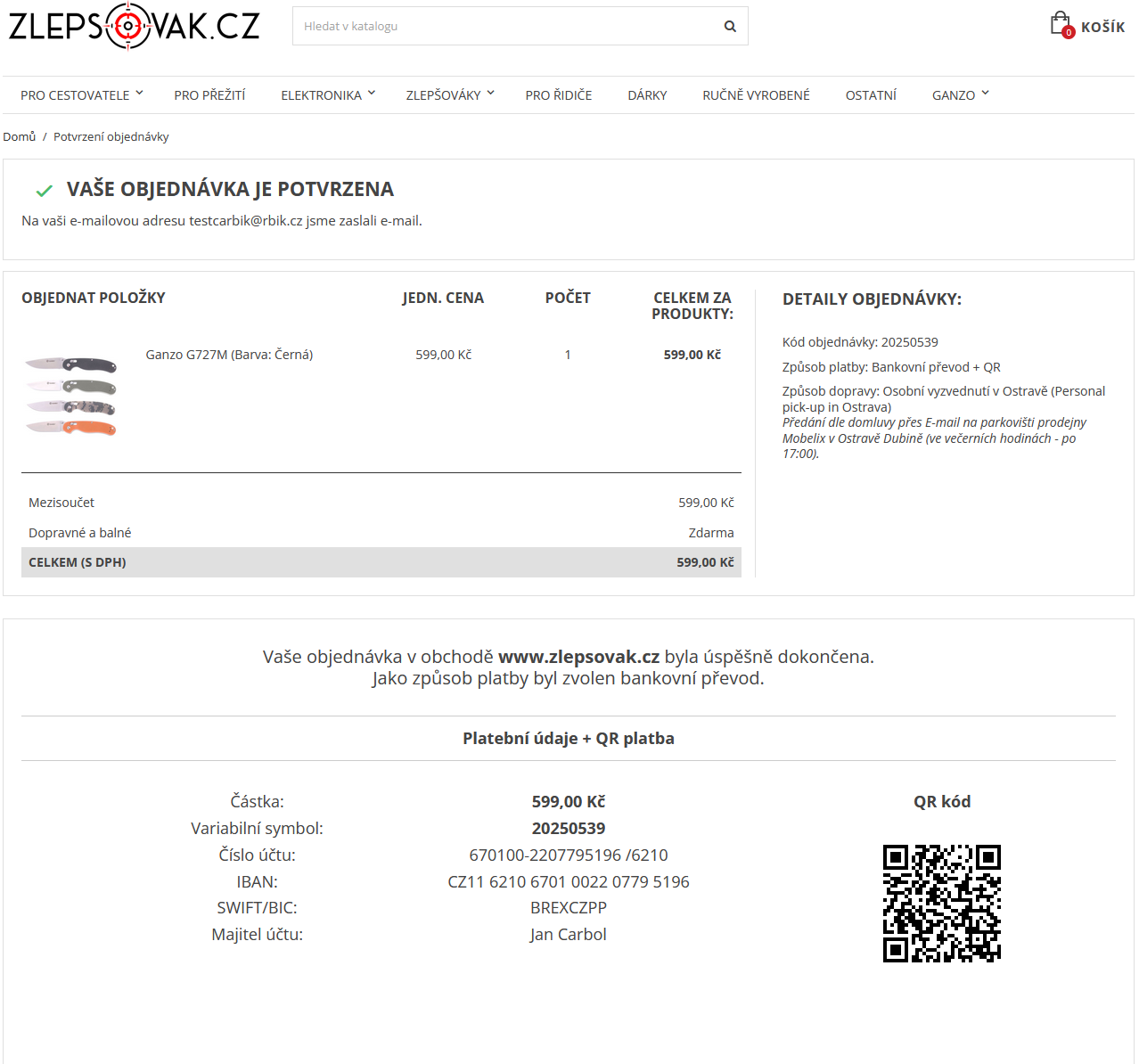
4. Step - Confirming your order
Switch to another language
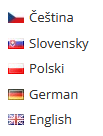 Language switching and ordering procedure - Prepnutie jazyka a postup objednania - Zmiana języka i procedura zamawiania - Sprachumschaltung und Bestellvorgang
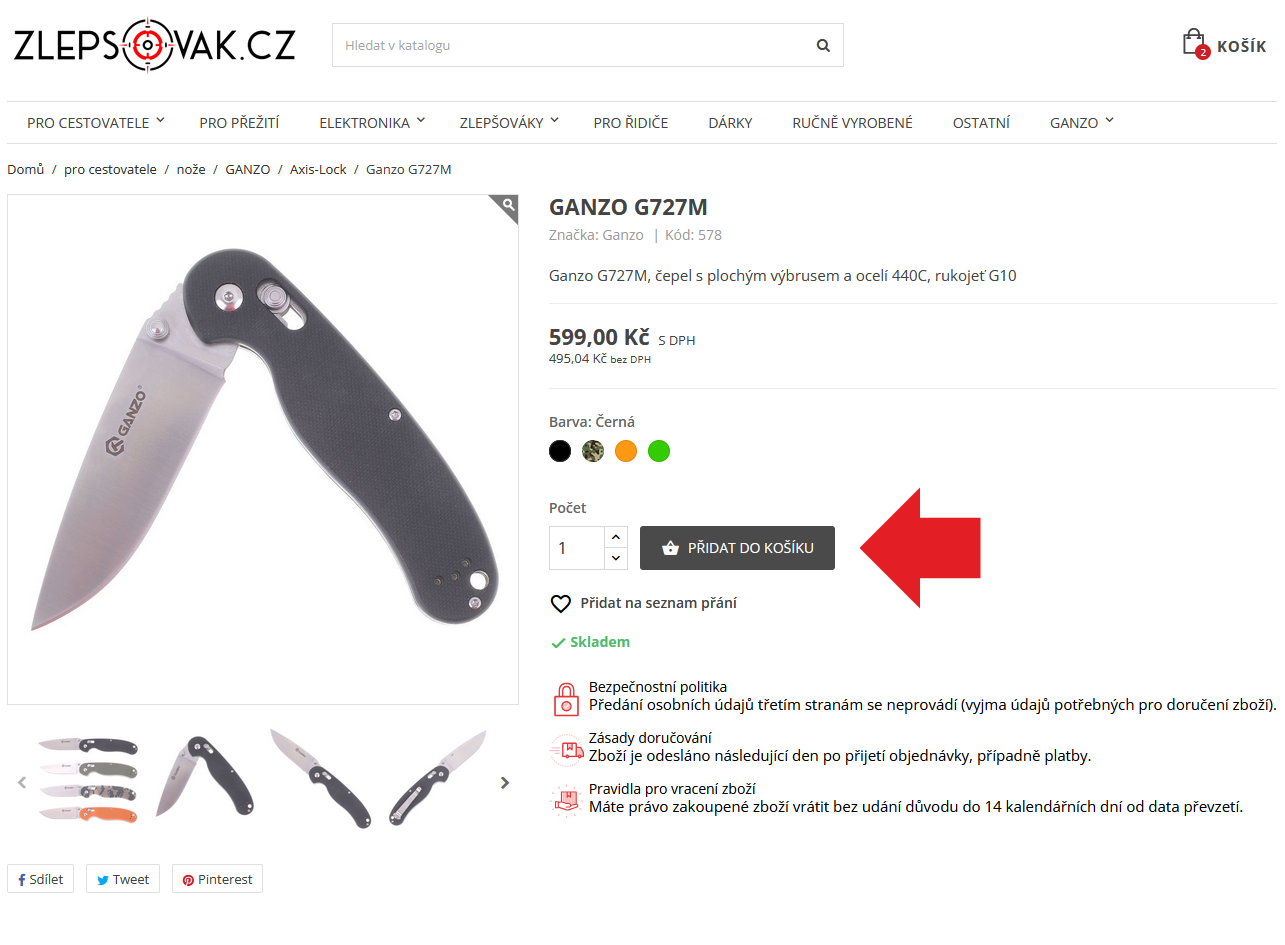
Adjust the quantity of the selected items (you can also adjust the quantity later directly in the shopping cart) and click on the "Add to cart" button.
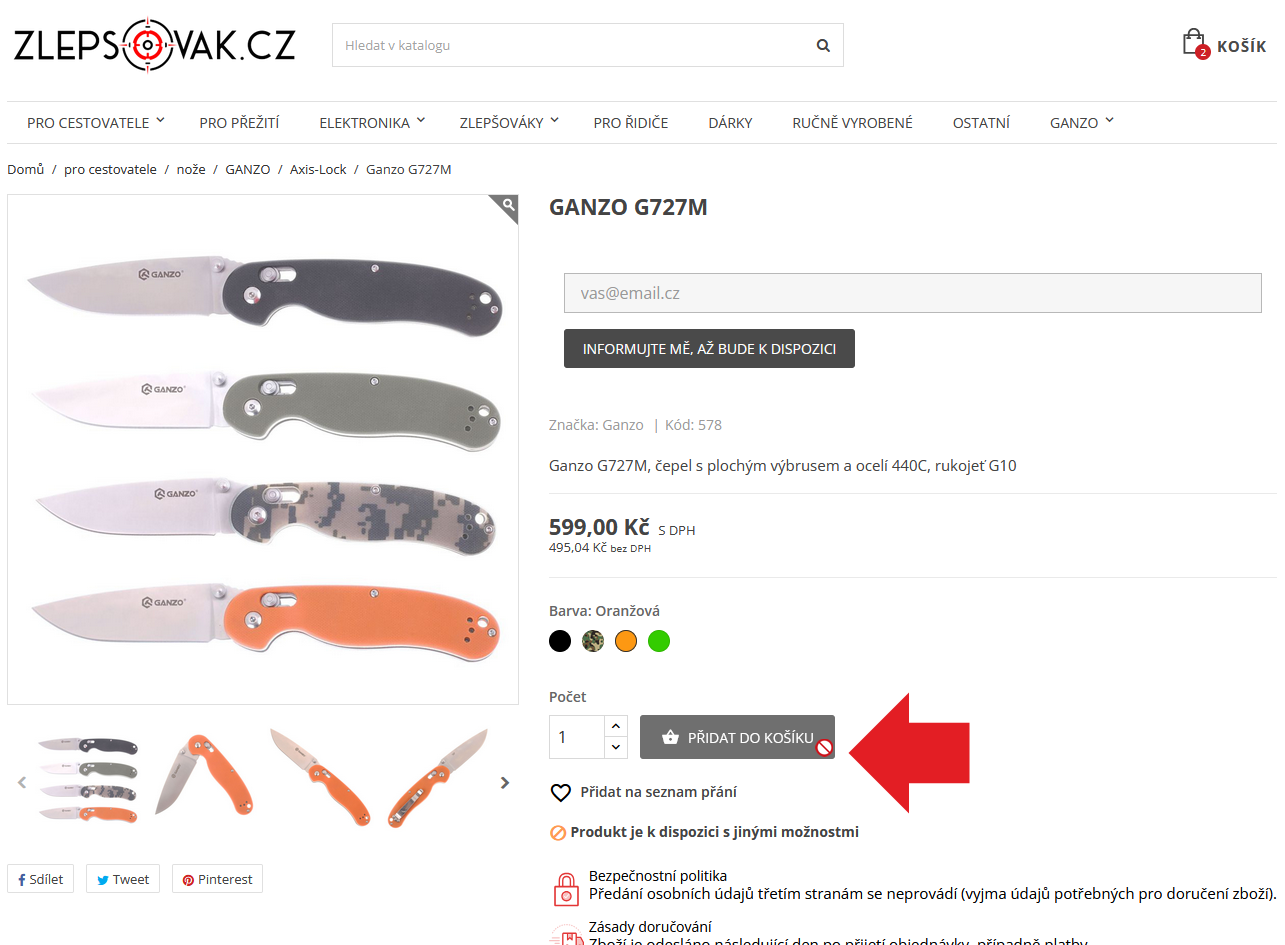
Items that are out of stock (or whose color variant is out of stock) cannot be added to the shopping cart.
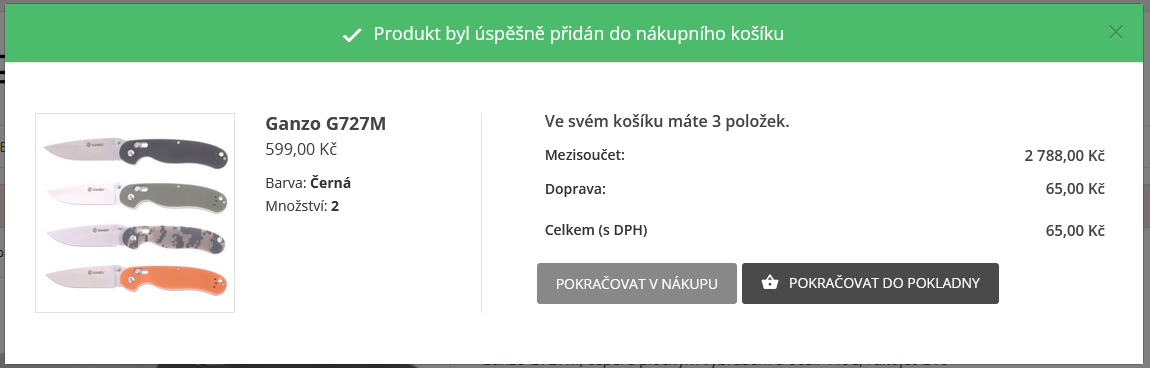
After adding items to your cart, a confirmation window will ask if you want to continue shopping (the window will then close) or proceed to checkout (all items in your cart will be displayed).
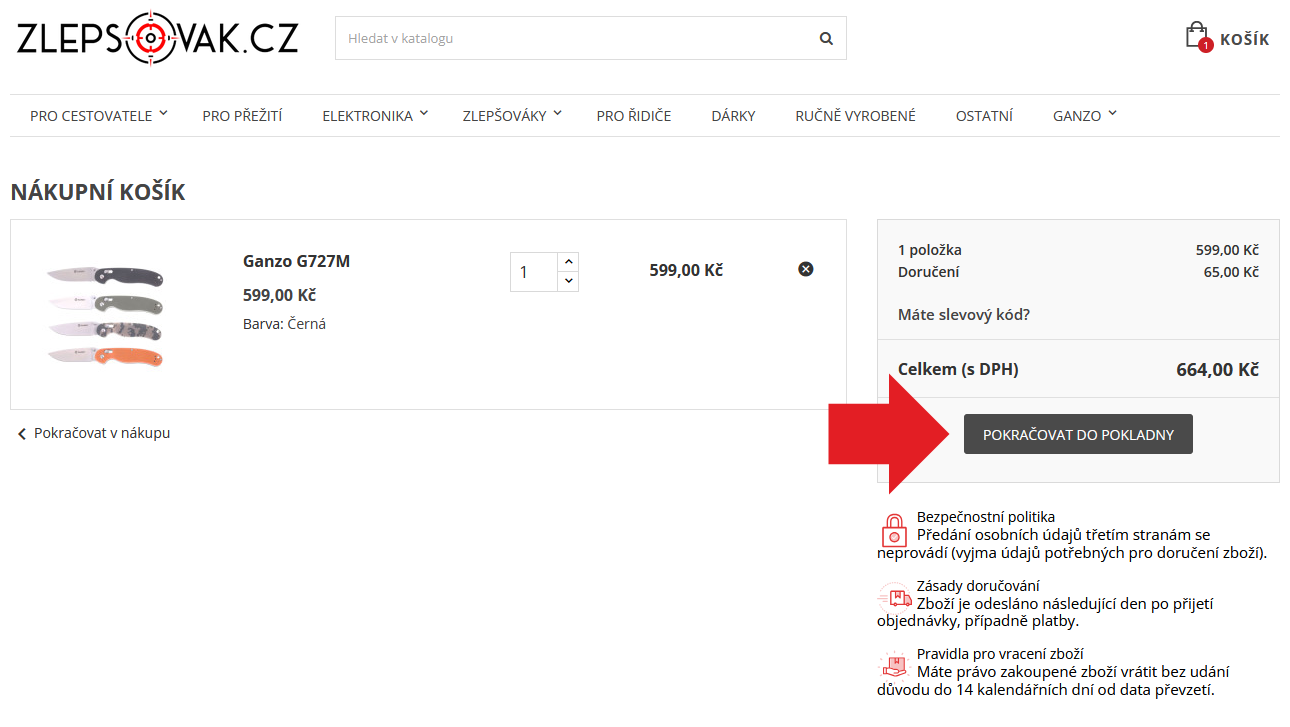
2. Step - proceed to checkout
If you did not open the shopping cart immediately after adding items, you will find it at the top right, where there is a small icon with a picture of a shopping cart and the word SHOPPING CART. In the shopping cart, you can see a summary of the items added to the cart and proceed to checkout.
3. Step - single-page checkout
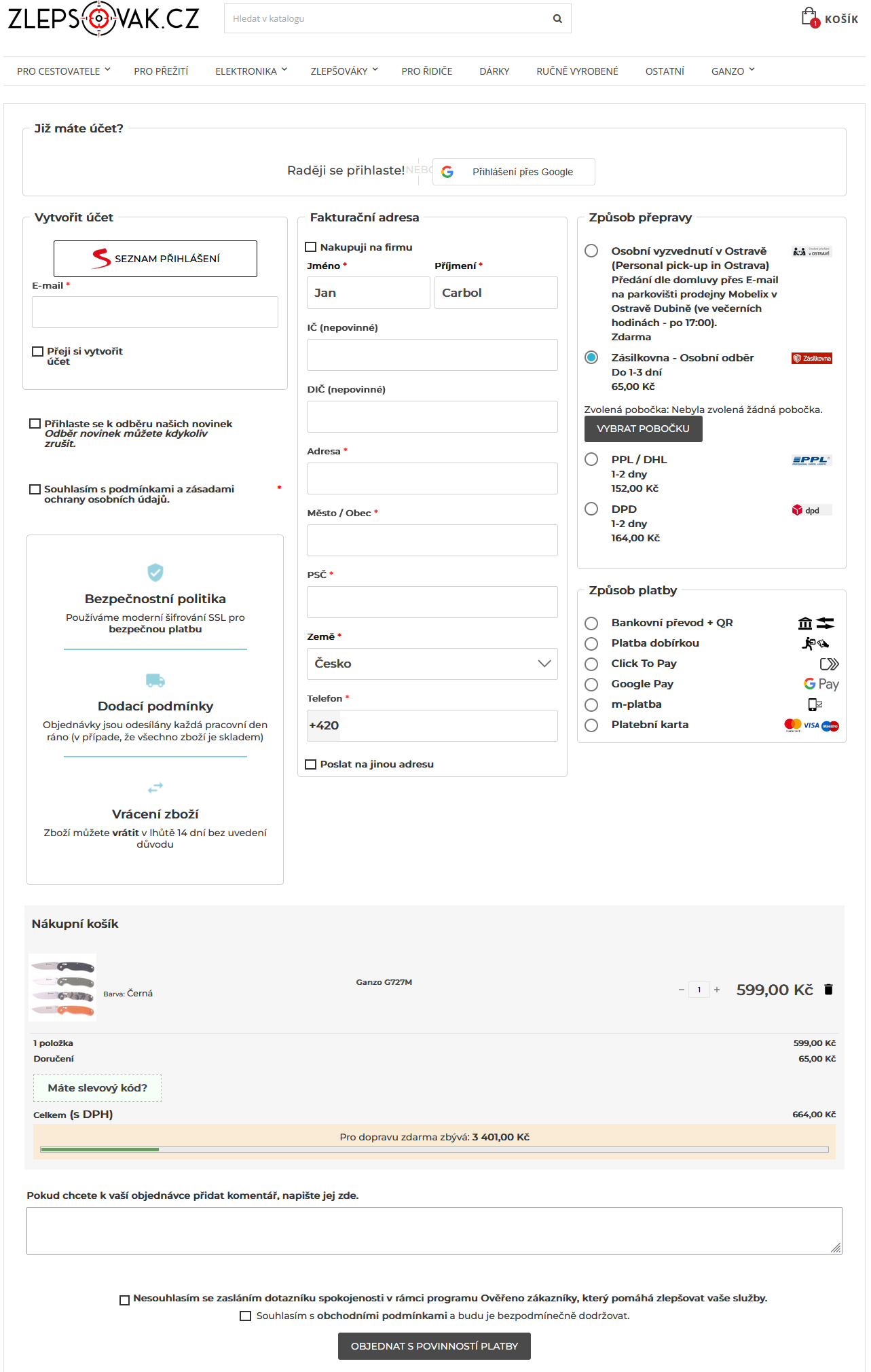
In the checkout, you can see everything on one page, i.e.:
- Logging into your account (you can use Google or Seznam login)
- Creating an account is not required
- Enter your address
- Select a carrier
- Select a payment method
This checkout also includes agreeing to the terms and conditions and privacy policy on the left-hand side.
Below the details, you will see a summary of your order and the necessary agreement to the terms and conditions.
4. Step - order confirmation
The checkout will highlight the fields that need to be filled in, and the last step is to click on the ORDER WITH PAYMENT button, which will complete your order and confirm it.
Switch to another language
 Pro přepnutí eshopu do jiného jazyka použijte malou vlajku v pravém horní rohu. Měna se pak automaticky přepne podle zvoleného jazyka.
 To switch the e-shop to another language, use the small flag in the upper right corner. The currency will then automatically switch according to the selected language.
 Ak chcete prepnúť e-shop do iného jazyka, použite malú vlajočku v pravom hornom rohu. Mena sa potom automaticky prepne podľa zvoleného jazyka.
 Aby przełączyć sklep internetowy na inny język, użyj małej flagi w prawym górnym rogu. Waluta zostanie automatycznie zmieniona zgodnie z wybranym językiem.
 Um den Online-Shop in eine andere Sprache umzuschalten, verwenden Sie bitte die kleine Flagge in der oberen rechten Ecke. Die Währung wird dann automatisch entsprechend der ausgewählten Sprache umgeschaltet.